Accounts and signing in
What works without an account, how to create one, sign in and out, bring a guest draft with you, and get help with your account.
Updated · View as Markdown
You don't need an account to plan. As a guest you get the whole editor: drawing, furnishing, finishes, 3D, the walkthrough, Present, Save image and every export. An account adds saving your plans, a view-only link to share them, and Live 3D.
Create an account
- Go to your plan library. While you are signed out, it shows the sign-in form.
- Press Create an account instead.
- Fill in Display name, Email and Password. The password needs at least 12 characters.
- Press Create account. You are signed in at once; there is no email to confirm.
Creating an account means you agree to the Terms and acknowledge the Privacy notice.
Sign in
- Go to your plan library.
- Enter your Email and Password, then press Sign in.
- Your plan library opens. Use New plan to start a plan (see Start a plan), or Open on a saved one.
A browser is signed in to one account at a time. To use another account, sign out first.
The account bar
While you are signed in, a bar across the top of the planner and the plan library reads “Signed in as” and your email.
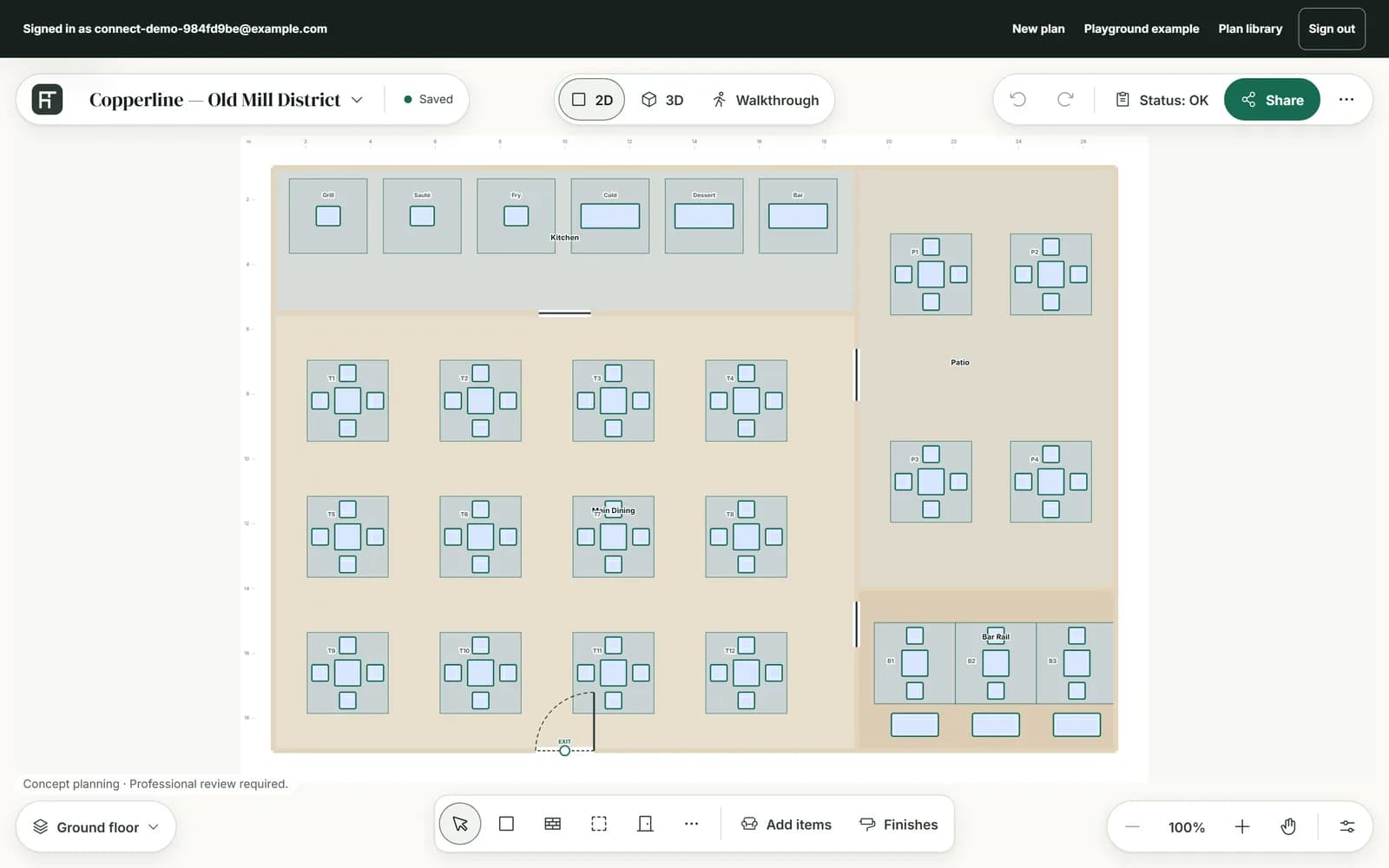
| Link | What it does |
|---|---|
| New plan | Opens a blank plan that asks “How big is your space?”. |
| Playground example | Opens the indoor playground template in 3D. |
| Plan library | Lists your saved plans. |
| Sign out | Signs you out and goes to the home page. If it fails, the bar says “Sign out failed. Your session is still active. Try again.” |
Bring a guest draft with you
Started as a guest? Sign in from inside the planner, and your plan comes with you:
- Press the plan's name at the top left and choose Sign in to save, or press the “Local draft · not saved” status beside the name. Sign in under More (⋯) and Sign in to get a link in the Share dialog do the same.
- Sign in, or create an account, on the page that opens: “Sign in to save your plan”.
- Your plan reopens in 2D. It is not saved yet: press the plan's name and then Save plan.
Note: The handover stays in this browser tab for up to 24 hours, so sign in in the same tab. If the browser can't keep a copy, the planner says “This browser could not preserve the draft for sign-in. Download an export before leaving this page.” An export keeps a picture or a record of the plan, but it can't be opened in the planner again.
Passwords and account changes
The app has no password reset, account settings or account deletion yet. To reset your password, change your email or delete your account, write to us from the Contact page, using the email address on your account. We check that the account is yours before we change anything.