A tour of the planner
Find your way around the planner: the 2D, 3D and walkthrough views, the top bar, the tool bar, the drawers and the Inspect card.
Updated · View as Markdown
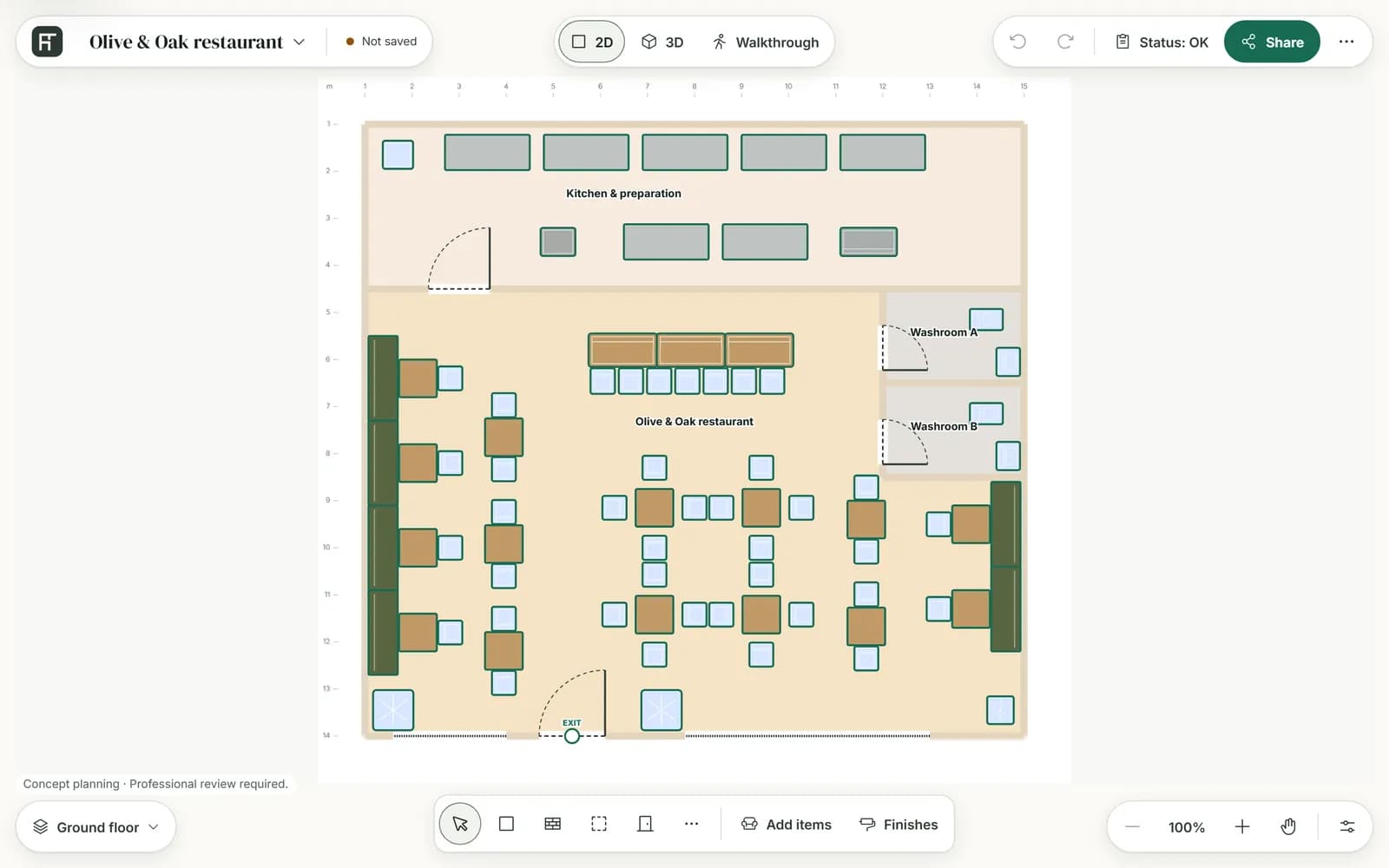
The planner shows one plan three ways. You do most of your work in the 2D plan; the 3D view and the walkthrough show the result, and you can still move items and paint there.
Three views
| View | What it is for |
|---|---|
| 2D | The plan from above. Draw rooms, walls, doors and windows, place items, and change anything from its card. |
| 3D | A lit model of the current floor. Turn and zoom it, move items, paint walls and floors, preview themes and light, save a picture or present it. |
| Walkthrough | Walk through the plan at eye level with the keyboard and mouse. On a phone it is called Walk. |
Switch views with the three buttons at the top. 3D and Walkthrough are unavailable while a review is open: apply or cancel it first.
Note: When you are signed in, leaving the 3D view or the walkthrough saves a plan that has unsaved changes. Looking at a template saves nothing.
The top bar
| Part | What it does |
|---|---|
| Logo | Goes to the homepage. The browser warns you first if the plan has unsaved changes. |
| Plan name | Opens the plan file menu. Signed in, it holds Plan name, Save plan (or Save changes), Save & share and, for a shared plan, Unshare…. A guest sees Sign in to save. See Save your plan. |
| Status chip | Says whether the plan is saved. Press it to save, or as a guest to sign in. See the status chip. |
| 2D, 3D, Walkthrough | Switch views. |
| Undo and Redo | Step back and forward through your changes, up to 100 steps. |
| Plan check chip | Sums up the automatic layout checks. Press it for the list. See the Plan check chip. |
| Share | Signed in, create a view-only link. As a guest, save a picture or sign in to get a link. Both can export the plan. See Share and export a plan. |
| More (⋯) | Templates, Help and docs, Measurement units (Metres or Feet) and, for a guest, Sign in. |
The status chip
| It says | What it means |
|---|---|
| Local draft · not saved | You are a guest. The plan lives only in this browser tab. |
| New plan · not saved | You are signed in, and this plan has never been saved. |
| Unsaved changes | The plan was saved and has changed since. |
| Saved | Everything is saved. |
| Read-only, then a reason | You can look at the plan and export it, but not change it. |
In a narrow window the chip shortens to Not saved, Unsaved, Saved or Read-only. On a phone it is a coloured dot.
The Plan check chip
| It says | What it means |
|---|---|
| Status: OK | Nothing is flagged. |
| nothing to review | There are only information notes. |
| 2 to review | Warnings to look at, marked amber. |
| 1 blocking | Problems such as overlapping items or a blocked doorway, marked red. |
| checking | The clearance guidance is still loading. |
| clearance guidance unavailable | The clearance guidance did not load. Open the chip and press Try again. |
Press the chip to open the Plan review summary. It is not shown in the walkthrough. See Plan check and clearances.
The tool bar
In 2D the tool bar runs along the bottom, with the floor chip on its left and the zoom controls on its right.
| Tool | What it does |
|---|---|
| Select | Select, move and resize what is on the plan. |
| Add room | Place a rectangular room. See Rooms and walls. |
| Draw wall | Draw a wall from point to point. A wall across a room divides it. |
| Draw zone | Mark a rectangle of floor, such as a play area or a seating area. |
| Doors and windows | Add a door or a window to a wall. See Doors, windows and exits. |
| More tools (⋯) | Identify room, Place column, Place stair, Venue size and Floor settings. |
| Add items | Open the catalog to place furniture and equipment. See Add and arrange items. |
| Finishes | List every room's walls and floor, its zones and the outside walls, so you can pick one and change its finish. See Paint walls and change floors. |
The floor chip shows the current floor; open it to switch floors or add one (see Floors and stairs). The zoom controls hold Zoom out, the zoom level (press it to reset the view), Zoom in, Pan view and View options (see Columns, zones, venue size and the view).
While a tool is on, a card above the tool bar says what to do next and offers Cancel (Esc). Messages appear above it and fade after a few seconds; a refusal stays until your next action. A change made from a card offers Undo beside its message.
Drawers and the Inspect card
Add items, Finishes, Venue size and Floor settings open in a drawer on the left, one at a time. Close it with its close button, or press Esc while you are working in it.
Select anything on the plan and its card opens on the right. The card's title says what you selected: an item, room or zone by its name; a wall as Exterior wall, Interior wall or Partition wall; or Door, Window, Column or Stairs. The line under the title gives its kind and place, such as the room an item stands in. Close the card with Close inspector, or click an empty part of the plan.
In a narrower window the drawer and the card take turns on screen.
The 3D view and the walkthrough
In 3D, drag to turn the model and scroll or pinch to zoom. Reset view at the top right goes back to the opening view. Click an item to select it, or drag it along the floor to move it. The bar along the bottom holds the theme and time-of-day previews, Golden light, Materials for painting, Save image and Present. See Look at your plan in 3D.
In the Walkthrough, the walk starts on its own and takes over the mouse (if the bar shows Start walking, press it first). Move with W A S D or the arrow keys and look around with the mouse. Esc pauses and gives you the mouse back. To leave, choose 2D or 3D in the top bar. See Walk through your plan.
On a phone
- The drawing tools are hidden: drawing needs a larger screen. Select, Add items, Finishes and More stay in the bottom bar.
- More also holds Redo, View options…, Floors…, Plan check… and Plan file…, and in 3D, Present, Save image and Golden light.
- The card opens as a sheet from the bottom of the screen. Press Show all details to see all of it.
- The status chip is a coloured dot, and Walkthrough is called Walk.