Manage your plans
Use the plan library to open, duplicate, archive, restore and delete your saved plans, and see what each does to a shared link.
Updated · View as Markdown
Your saved plans live in the plan library. Open it with Plan library in the account bar. Each card shows a picture of the plan's main floor, whether the plan is Active or Archived, its name, and when it was last updated.
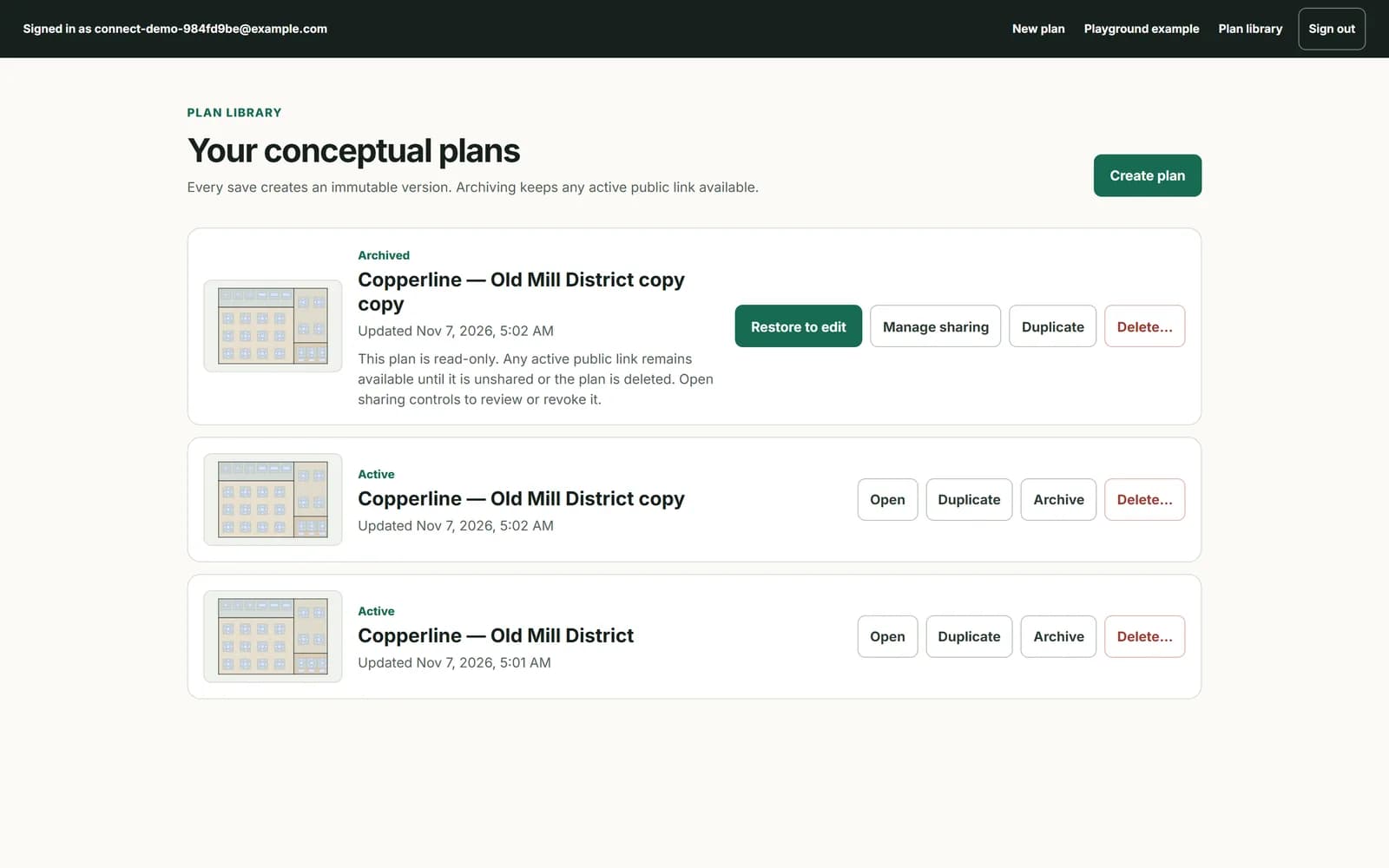
The newest 24 plans get a picture; older cards show an empty frame. Click a picture to open its plan.
Before your first save, the library says “No planning workspace yet”. Create a plan and save it once to set up your library; Create first plan starts one.
What each button does
| Button | What it does |
|---|---|
| Create plan | Opens a blank plan. |
| Open | Opens the plan in the planner. |
| Duplicate | Makes a new plan from the current version, named after the original with “copy” at the end. The copy has no shared link. |
| Archive | Makes the plan read-only and marks it Archived. Its shared link keeps working. |
| Restore to edit | On an archived plan: makes it editable again. |
| Manage sharing | On an archived plan: opens its page, where you can open or unshare its link. |
| Delete… | Asks you to confirm, then deletes the plan and turns off its shared link. |
Archive or delete
Archive a plan you want out of the way but kept: it stays in the library, read-only, and any shared link still opens. Delete a plan you want gone.
Warning: Deleting can't be undone. After you press Confirm delete, the plan and its public link are gone for good.
Turn off an archived plan's link
- On the archived plan's card, press Manage sharing.
- Under “Public sharing is active”, press Unshare archived plan…, then Confirm unshare.
To edit an archived plan again, press Restore to edit. Opening it without restoring shows “This plan is archived. Restore it from the library before editing.”