What Live 3D is
Live 3D shows your venue app's tables, bookings or play zones live on your shared plan in 3D, with replays of past service days.
Updated · View as Markdown
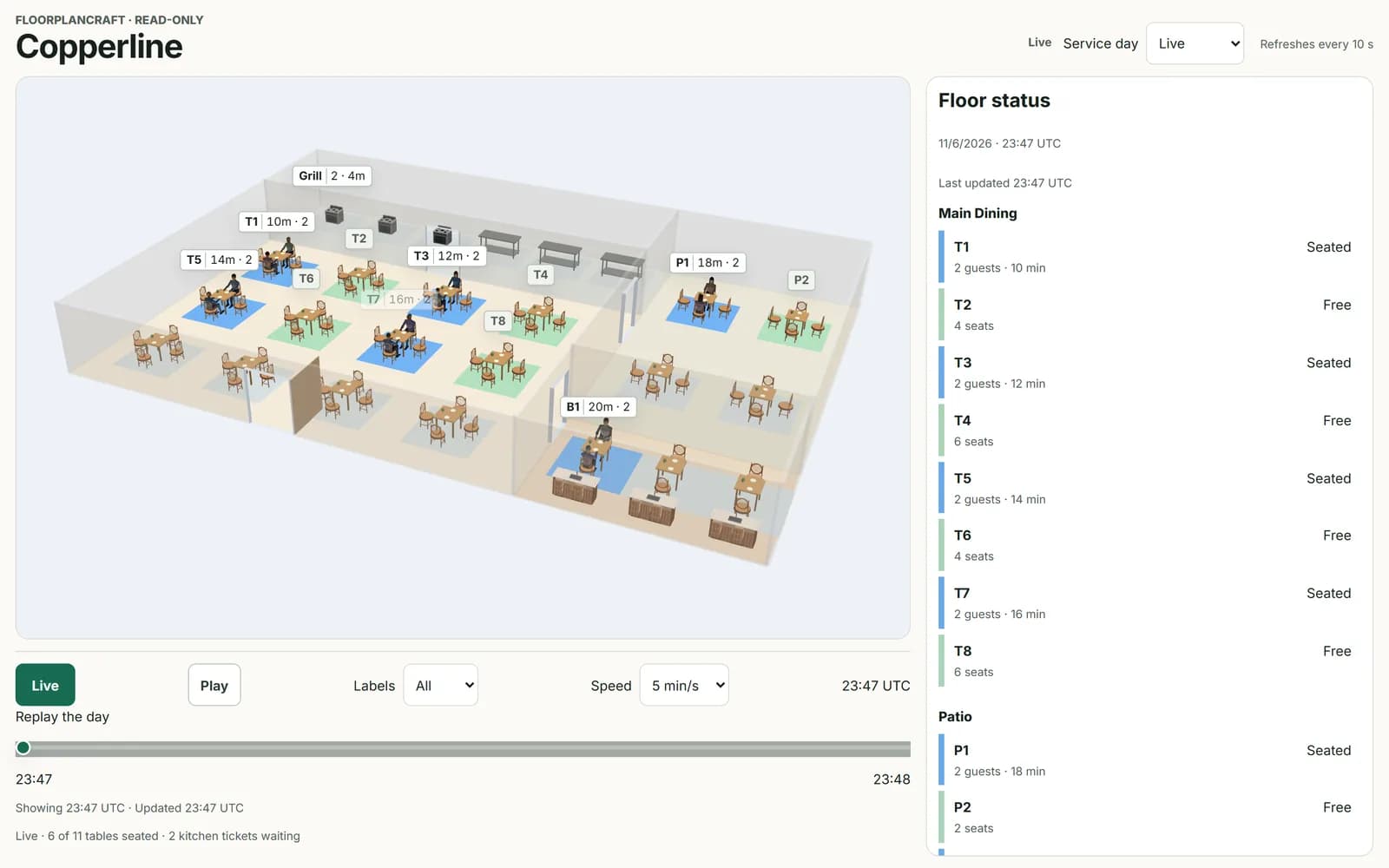
Live 3D links a venue app, such as a restaurant's table system, to your plan in FloorPlanCraft. The app reports what is happening on the floor, and the plan shows it in 3D: which tables are seated, which rooms are in use, how many kids are in each play zone.
Apps that can connect
| App | What the live view shows |
|---|---|
| Restaurant app | Tables as free, seated, seated for a long time or being reset, and kitchen stations with their queues. It can also make a first plan from your tables, and add new tables to your plan. |
| Booking app, for salons, clinics, gyms and the like | Rooms, chairs and stations as free, in use, in use for a long time or being cleaned. |
| Play venue app | Play zones as empty, playing with the number of kids in each, or closed. |
The app connects from its own settings and sends you to FloorPlanCraft to approve. Only an app built to connect to FloorPlanCraft can do this. To build the connection into your own system, see the Developer overview, or give a coding agent one of the prompts to connect your system.
Where you see it
- The live view, on your venue app's screens: your plan in 3D, coloured by what the app reports, with the floor's status, recent events and a legend. It refreshes every 10 seconds. See Read the live view.
- Replays of today or of a past service day the app reported, minute by minute, in the same view.
- The plan itself, view-only, on the sites you allow, such as the app's own pages.
What it costs
Live 3D is paid per venue and billed through Whop; it is switched on for your workspace, where your saved plans live. The checkout page shows the price, and Switch on Live 3D in the plan's Share dialog opens it. You can cancel any time, and canceling keeps Live 3D on until the end of the month you paid for.
You can connect an app before you pay. The app can show your plan straight away, and the live status starts once Live 3D is on.
What you need
- A FloorPlanCraft account and a saved plan of your venue. A restaurant app can make a first plan from your tables.
- A venue app that can connect to FloorPlanCraft.
- Live 3D switched on, for the live status.
Note: Live 3D shows what your app reports. It is not a safety, capacity or occupancy system, and your plan stays a concept plan.