Read the live view
What the live view shows: live or last seen, service days, replays and speed, labels, floor status, recent events and the legend.
Updated · View as Markdown
Your venue app opens the live view on its own screens, from a short-lived link. It shows your plan in 3D with each table or zone coloured by what the app reports, and it refreshes every 10 seconds. It is read-only: nothing you do there changes the plan.
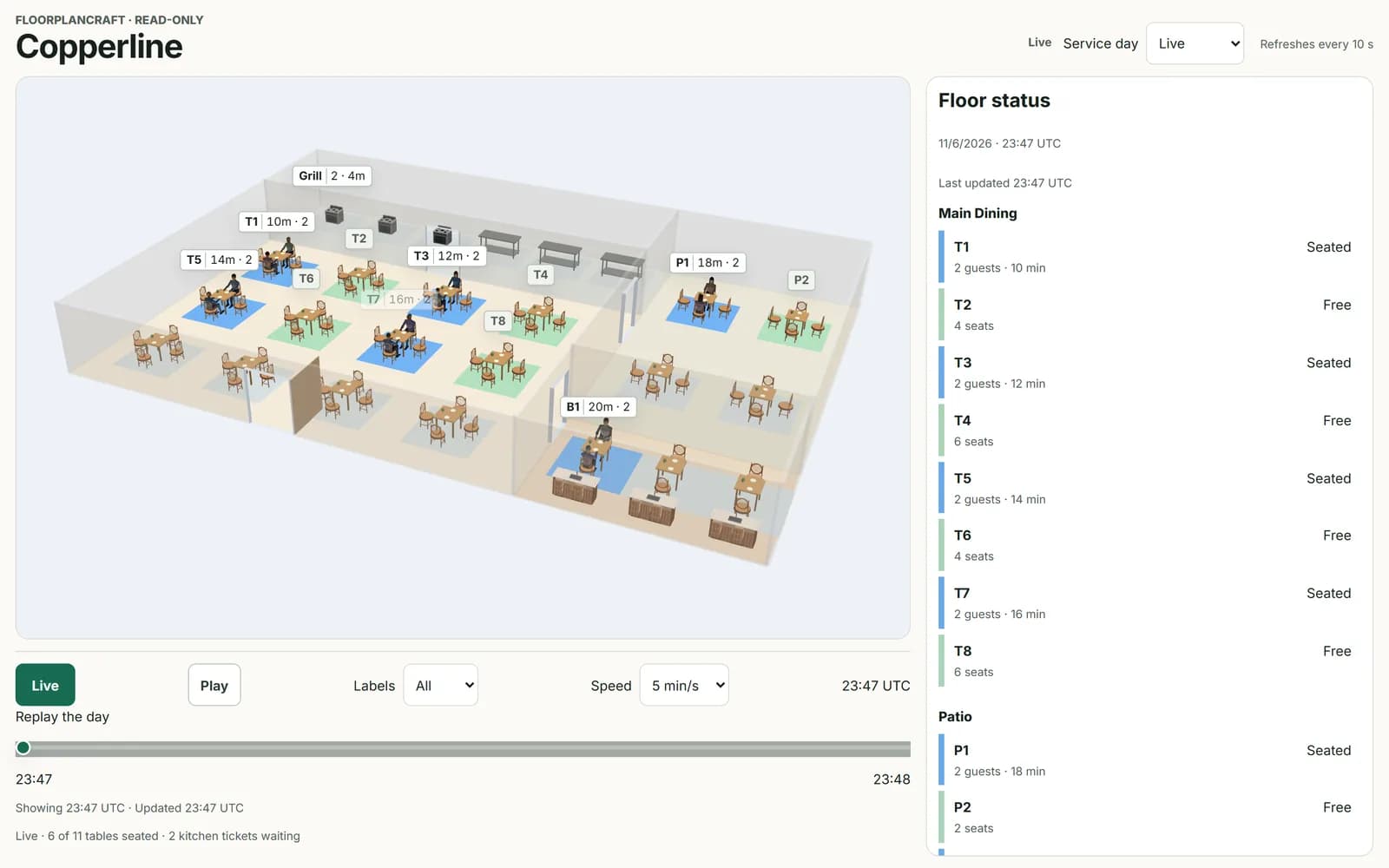
Live or last seen
| The top line says | What it means |
|---|---|
| “Live” | The app sent an update in the last 90 seconds. |
| “Last seen 14:05” | The app's last update came at that time, and the view shows the floor as it was then. |
| “Waiting for the venue's first update” | The app is connected but hasn't sent anything yet. |
| “Estimated 14:12 from exit times” (where it usually says “Refreshes every 10 s”) | The app has been silent for over 90 seconds. The view estimates each zone from when its guests were due to leave, if the app sends those times. It goes back to live when the app does. |
| “Venue live now” | You are looking at a past day, and the venue is live right now. |
Service days
Service day chooses what to show: Live, or a past day the app reported. If the app re-sends a day it missed, that day appears here too. A past day opens at its end (“Stored day · end of day”), and its End of day button brings you back there after a replay.
Replay the day
- Drag the Replay the day slider to a time. The floor shows that minute, and the view says “Replay paused”.
- Press Play to run the replay from there. Speed sets 1, 5 or 15 minutes of the day per second.
- Press Pause to stop, or Live to go back to now.
The shading behind the slider is taller and darker where more of the floor was in use. Point at it to read that moment, for example “4 of 7 tables seated at 13:00”.
Labels
Labels sets which tables or zones carry a label in 3D: All, In use or Off. A label in use shows minutes and people, such as “25m · 4” for a table, or “12 kids” for a play zone. Your choice is remembered in this browser.
The side panel
- Floor status: the date and time shown and when it last updated, then every table or zone by room, with its state, its party or seats, and how many minutes it has been in use. A restaurant also sees Kitchen stations, with the tickets queued and the age of the oldest.
- Recent events: what happened up to the time shown, such as “T7 seated · 4 guests”.
- Legend: what the colours mean, in your app's words.
| Meaning | Restaurant app | Booking app | Play venue app |
|---|---|---|---|
| Nobody there | Free | Free | Empty |
| In use | Seated | In use | Playing |
| In use for a long time | Seated >N min | In use >N min | Not used |
| Being reset, or closed | Reset | Cleaning | Closed |
Your app sets N, the minutes after which a table or area counts as in use for a long time. A restaurant's legend also colours the kitchen: “Kitchen <8 min / empty”, “Kitchen ≥8 min” and “Kitchen ≥15 min”.
When the link expires
A live view link lasts at most 12 hours. When it runs out, the page says “This live view link has expired”: open the live floor again from your app to get a new link. If the app is disconnected, Live 3D runs out or the plan is unshared, an open live view changes to “This live view is no longer available” within a minute.
For how an app shows the live view on its screens, see Embedding the live view in the developer guide.