Start a plan
Open a furnished template, a ready plan at a common size, or one blank room, as a guest or signed in to your account.
Updated · View as Markdown
You can start a plan three ways: from a furnished template for your kind of business, from a ready plan at a common size, or from one blank room you size yourself. You don't need an account to start.
Start from a template
A template is a furnished starter plan for one kind of business, such as a restaurant, a dental clinic or an indoor playground. It also decides which catalog Add items shows, so pick the one closest to your business.
- On the website, open Solutions and pick a kind of space, or press Explore the planner to open the restaurant template.
- The plan opens in the 3D view. Drag to turn it and scroll to zoom.
- Press Make it yours at the top right to edit the plan in 2D.
Note: Looking at a template saves nothing. Once you change it, it is your plan, ready to save.
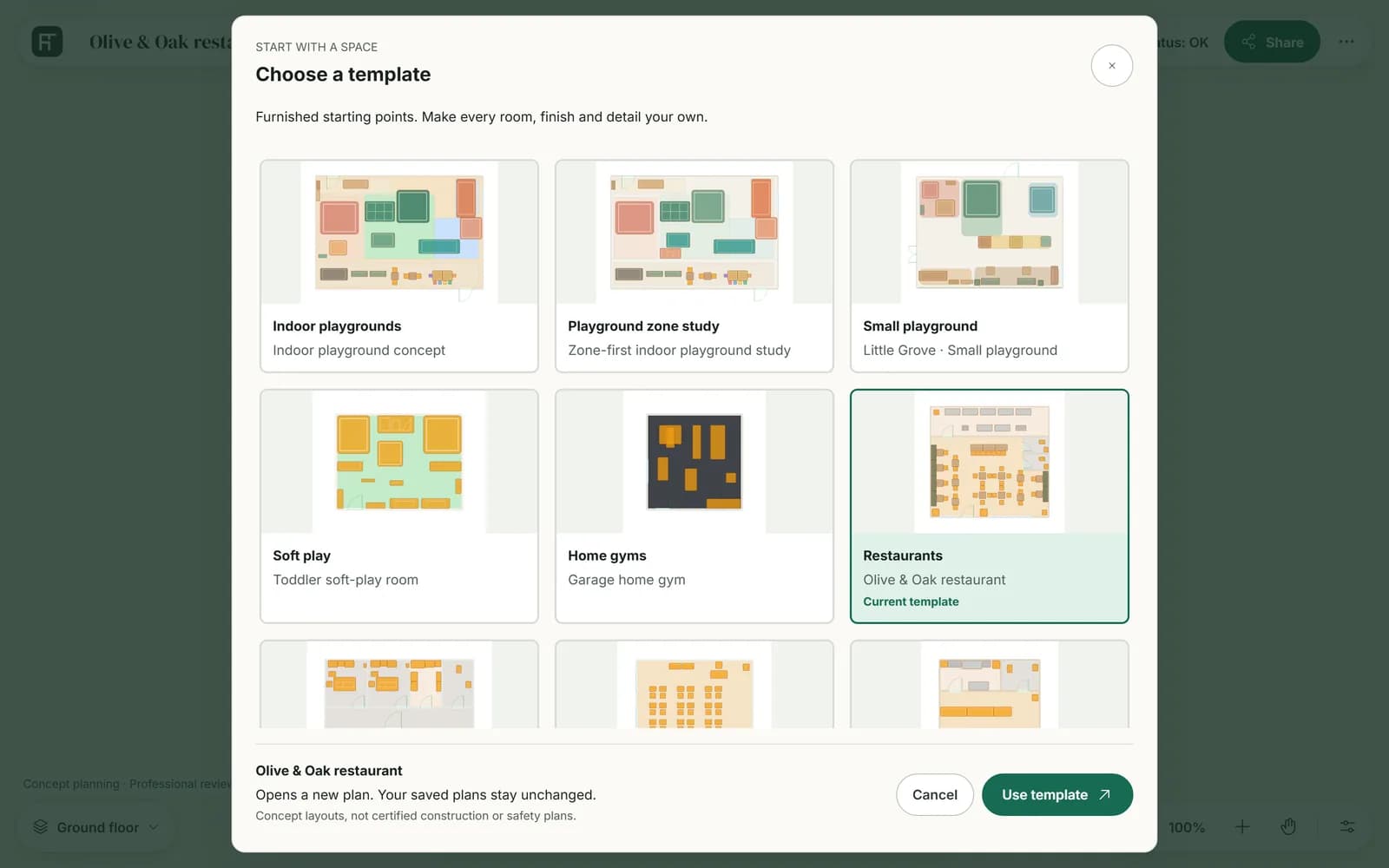
Choose from the template gallery
Inside the planner, the template gallery lists a starter for every kind of space.
- Open More (⋯) in the top bar and choose Templates. On a new blank plan you can also press Start from a template.
- Pick a card. The template your plan came from has a Current template badge.
- Press Use template. To start empty instead, pick Blank plan and press Create blank plan.
The plan you have open does not change. If it has unsaved changes, the button reads Open in new tab: the new plan opens in another tab and your changes stay where they are.
Start from a plan sized for your space
Floor plans by size has ready plans at common sizes, such as a 1,500 sq ft restaurant, a 3-chair dental clinic or a classroom for 25 students. Each is furnished from the catalog for its kind of space.
- Open Floor plans by size and choose a plan.
- Press Open this plan in the planner. It opens in the 3D view.
- Press Make it yours to edit it.
Each size page also offers the plan as a PDF to download.
Start with a blank room
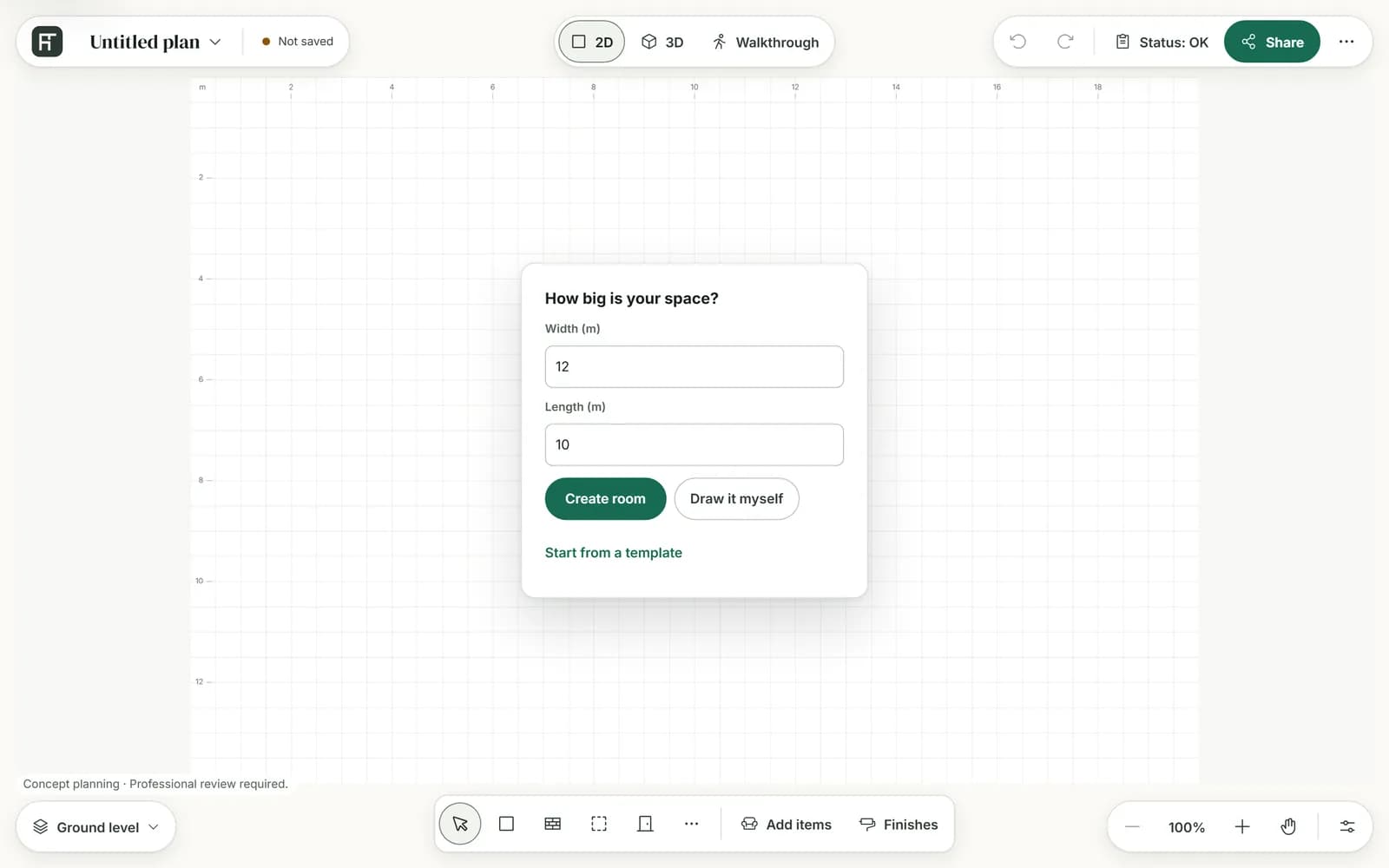
A blank plan asks one question, How big is your space?, and draws one room of that size.
- Open a blank plan: Start with a blank canvas on the homepage, Start blank plan on the planner's first panel, Start a blank plan on Floor plans by size, New plan in the account bar, Create plan in your plan library, or Blank plan in the template gallery.
- Type the size into Width (m) and Length (m). In feet the fields read Width (ft) and Length (ft). The card starts at 12 × 10 m.
- Press Create room. The planner draws the room and says “Room created. Add items next.”
Sizes run from 0.5 m to 100 m (1.64 ft to 328 ft). To draw the rooms yourself instead, press Draw it myself: the Add room tool starts. See Rooms and walls.
Warning: A blank plan always uses the indoor playground catalog, so Add items shows playground equipment. For a restaurant, clinic, shop or any other business, start from that business's template instead and change its rooms to fit your space.
As a guest or signed in
Without an account you get the whole editor. An account adds saving and a view-only link.
| Feature | Guest | Signed in |
|---|---|---|
| Draw, furnish, 3D and walkthrough | Yes | Yes |
| Save image and every export | Yes | Yes |
| Save the plan | No | Yes, as a new version each time |
| View-only share link | No | Yes |
| Where the plan lives | Only in the open browser tab | Your plan library |
Warning: A guest's plan lives only in the open browser tab. Reload or close the tab and the plan is gone, after the browser warns you. An exported file cannot be opened in the planner again, so sign in before you close the tab if you want to keep working on the plan.
To keep a guest plan, press the status chip that reads Local draft · not saved, or choose Sign in in More. Sign in or create an account in the same tab, and your draft reopens in the planner, ready to save. See Accounts and signing in and Save your plan.