Add and arrange items
Place furniture and equipment from your plan's catalog, then move, turn, duplicate, align and remove items on the plan or from the item card.
Updated · View as Markdown
Items are the furniture, fixtures and equipment in your plan. They come from the catalog of your plan's kind of business, and each one keeps the size of its catalog item.
Note: The catalog comes with the plan. A blank plan uses the indoor playground catalog; for a restaurant, clinic, shop or any other business, start from that business's template so Add items shows its items. See Start a plan.
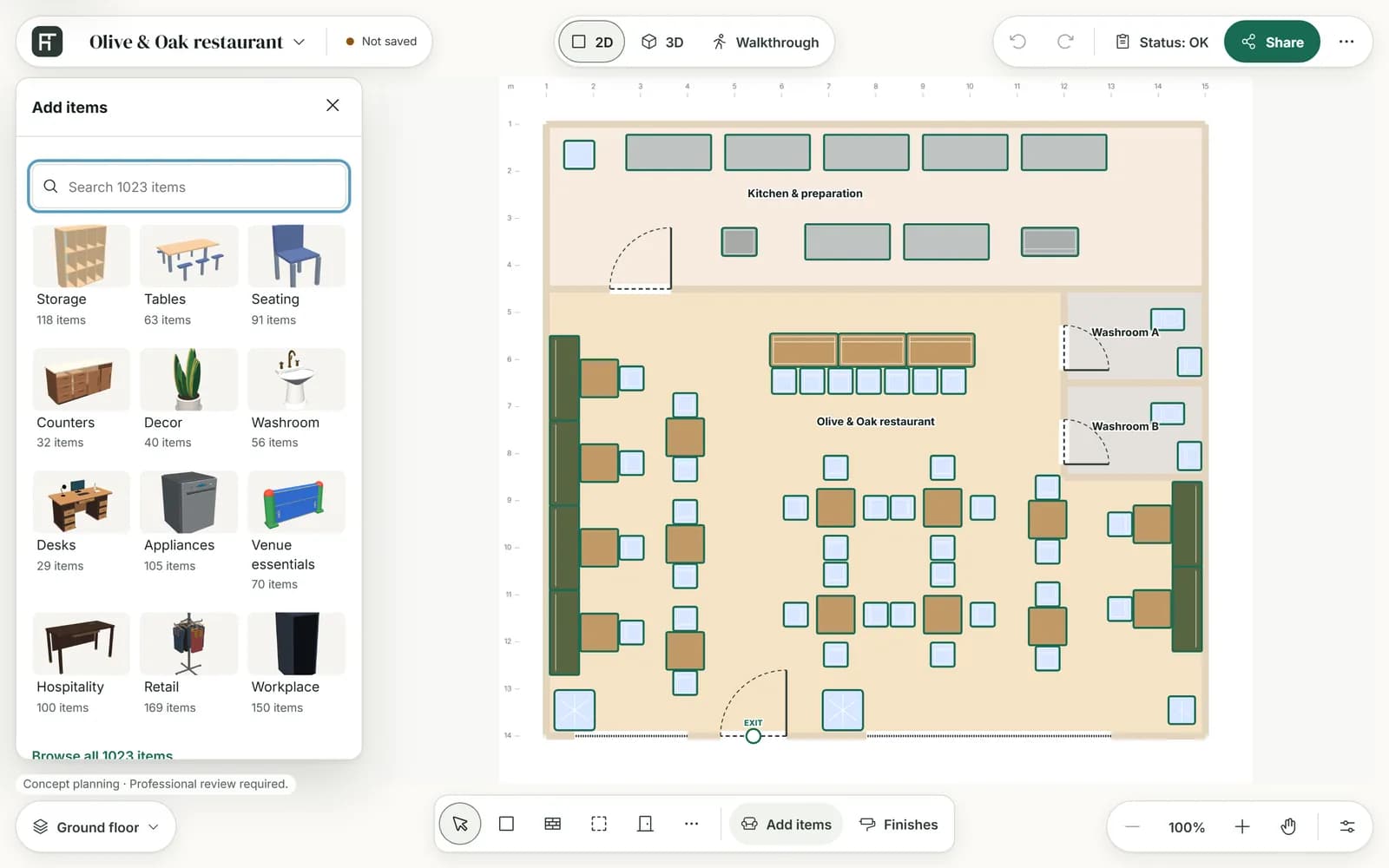
Find an item
- In the 2D plan, press Add items in the tool bar. The library opens in the drawer on the left.
- Press a category to browse it, or Browse all to see every item. To search, type in the box at the top, which reads Search and the number of items.
- In a category, buttons with each family's name and count narrow the list. Categories takes you back.
Where a catalog has real products from several brands, the Brand: Any menu filters them, and Generic shows only the generic concept models. Each tile shows the item's name, its brand (or Generic, where the catalog mixes both) and its footprint. The list shows 12 items at a time: scroll, or press Load more equipment.
Place an item
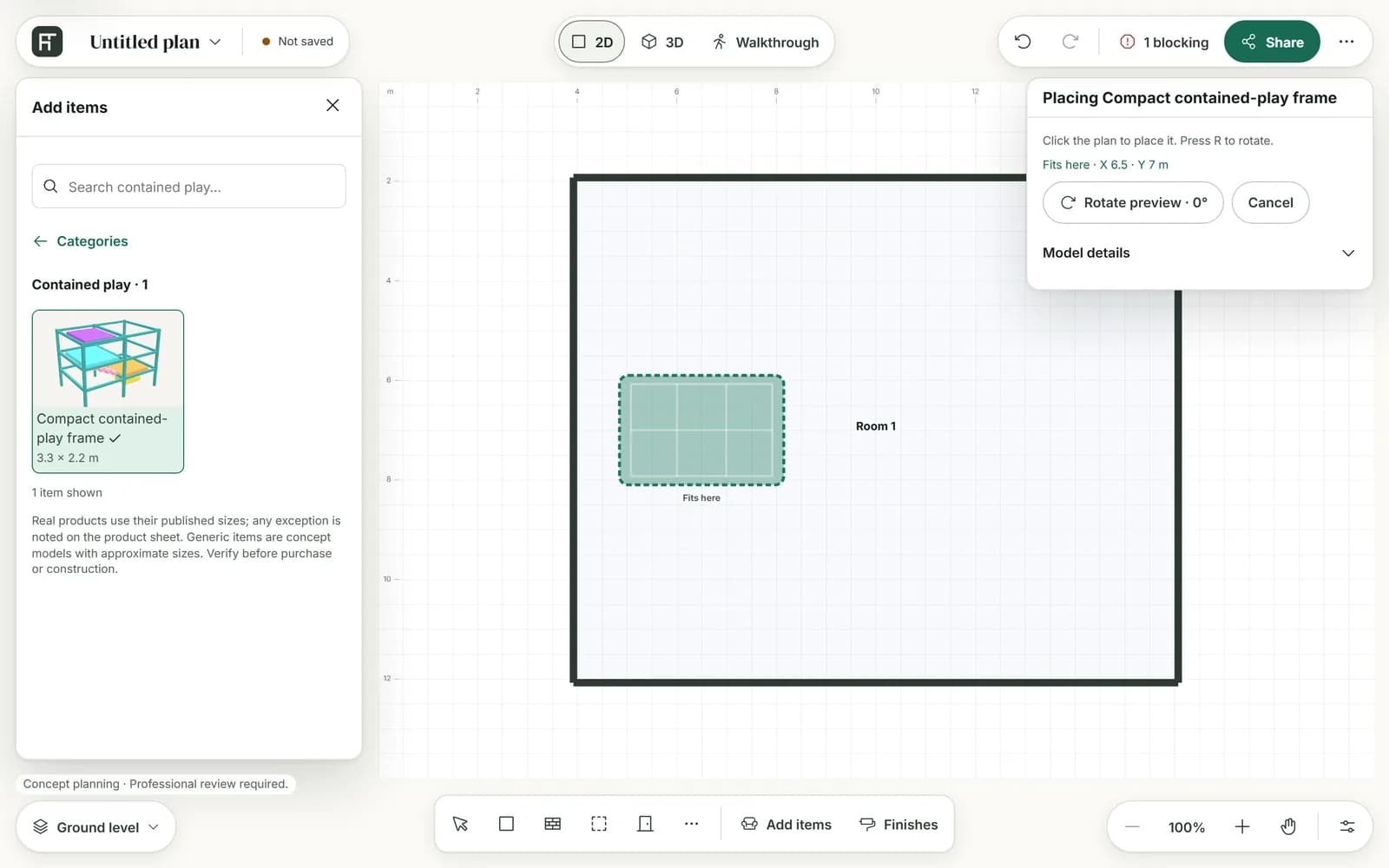
- Press an item's tile. The card on the right is titled Placing and the item's name.
- Move the pointer over the plan. A coloured outline of the item follows it, snapped to the grid while Snap to grid is on.
- To turn it, press R or Rotate preview. Both work only for items that can stand at more than one angle.
- Click the plan to place the item.
| Outline | The card says | What it means |
|---|---|---|
| Green | Fits here and the position | The plan check flags nothing about the item there. |
| Amber | Can place here · review and a count | It can go there, but the plan check will flag something about it. |
| Red | Cannot place here · choose another point | The catalog's rules don't allow it there, and a click won't place it. |
Once the item is placed, the planner goes back to Select with the new item selected, and the message says whether the plan check found warnings or blocking issues. To place another, press its tile again. Cancel or Esc stops placing. On a touch screen, tap the plan to place the item.
Model details on the placing card shows the item from above, a 3D model behind Show 3D model, and its product sheet or its size.
Move and turn an item
- Drag an item with Select on to move it. It snaps to the grid while Snap to grid is on, and its outline turns the same colours as when you place it.
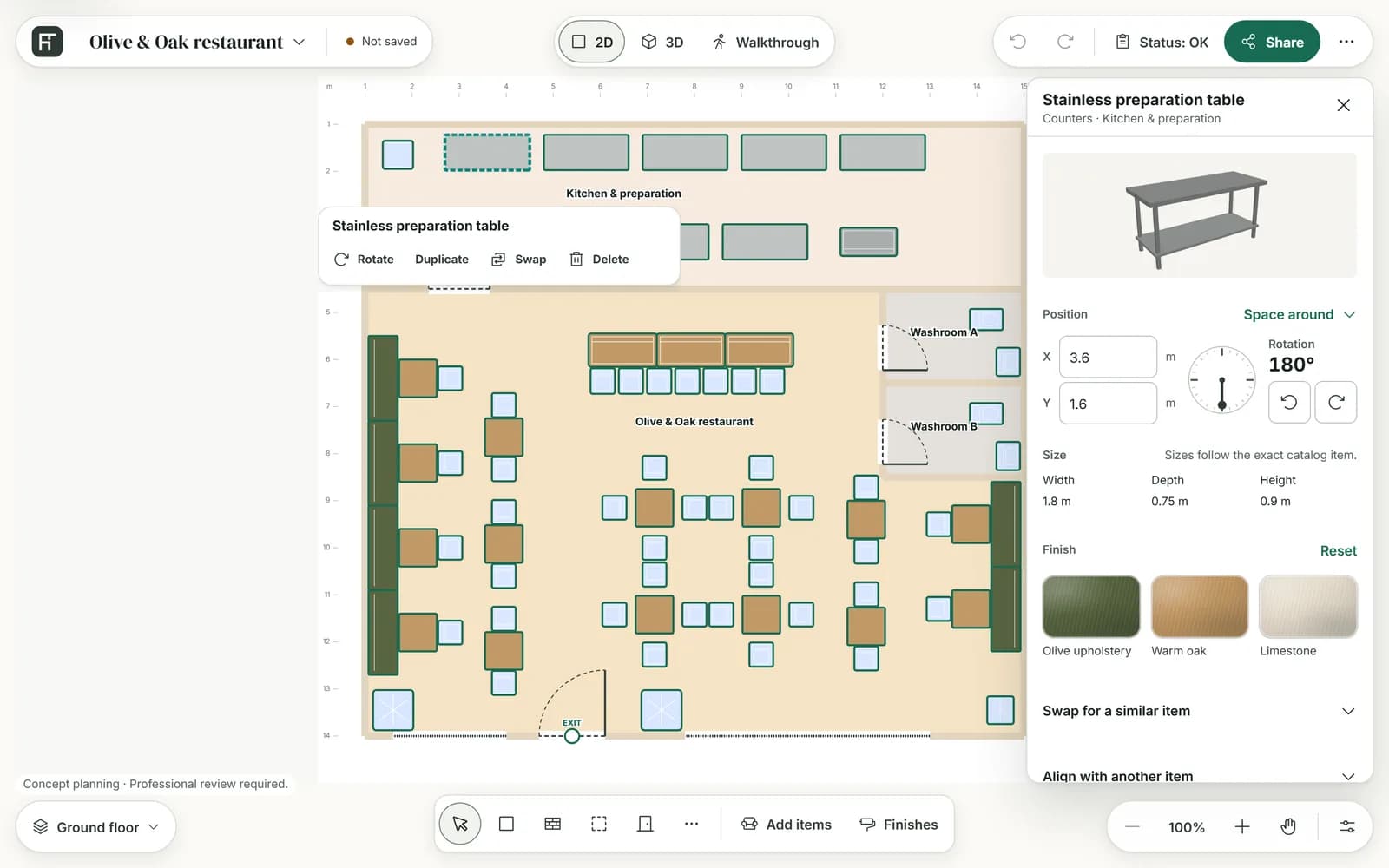
- Or type its position into X and Y on its card.
- Turn it with the Rotation dial on its card: drag the needle, press one of the two turn buttons beside it, or focus the dial and use the arrow keys. The needle points the way the item's front faces; 0° faces the top of the plan.
- Rotate, on the toolbar that appears with the selected item on the plan, turns it to its next allowed angle.
- In the 3D view, drag an item along the floor to move it, or click it for a toolbar with a rotate button, Duplicate, Swap, Finish and Remove. See Look at your plan in 3D.
Items stop only at the angles their catalog allows. With a single allowed angle the dial says The only allowed angle; an item standing at an angle its catalog doesn't allow says Not an allowed angle until you turn it.
The item card
Click an item to open its card. The title is the item's name, with its category and room underneath.
| Section | What it holds |
|---|---|
| Position | X, Y, the Rotation dial and the Space around switch. See Plan check and clearances. |
| Size | Width, depth and height. Sizes follow the exact catalog item, and most can't be changed. |
| Finish | The finish colours this catalog offers, and Reset. See Paint walls and change floors. |
| Swap for a similar item | Trade it for a similar item in the same spot. See Swap an item. |
| Align with another item | Line it up with another item on the same floor. |
| More properties | The angles the catalog allows, and buttons to duplicate or remove the item, named with your plan's word for an item, such as Duplicate furniture item. |
| Product details | For a real product: its brand, published size, sources and a View at link to the retailer. |
Duplicate an item
Press Duplicate on the selected item's toolbar, on the plan or in 3D, or the duplicate button in the card's More properties. The copy appears beside the original with a gap of one grid step, with the same size, angle and finish, and is selected.
Align items
- Select the item you want to move.
- Open Align with another item on its card and choose the Reference item.
- Press Left edges, Horizontal centers, Right edges, Top edges, Vertical centers or Bottom edges.
Only the selected item moves; the reference item stays where it is.
Remove an item
- Select the item and press Delete, or Delete on its toolbar on the plan, Remove on its 3D toolbar, or the remove button in the card's More properties.
- A review opens. It shows the item, its floor, position, angle, size and finish, and how the plan check counts change.
- Press the remove button, such as Remove furniture item, to confirm, or Cancel.
Nothing is removed until you confirm, and one Undo brings the item back.
Words differ by business
Buttons and messages use your plan's word for an item, so the same button can read differently from one plan to another:
| Plan | An item is called |
|---|---|
| Restaurants, cafés, dental clinics, classrooms, daycares and offices | furniture item |
| Indoor playgrounds, blank plans, medical clinics, hospital units, labs, commercial kitchens, warehouses and auto repair shops | equipment item |
| Home gyms | equipment |
| Hair salons, boutiques, supermarkets, pharmacies and furniture stores | fixture |
For example, the removal button reads Remove furniture item in a restaurant plan and Remove fixture in a shop.