Plan check and clearances
Read the plan check: what blocking issues, warnings and info notes mean, how Space around shows and fixes gaps, and why it is guidance only.
Updated · View as Markdown
As you work, the planner runs automatic layout checks on your plan: overlapping items, blocked doorways, rooms no doorway reaches, and clearance guidance where your catalog has it. The Plan check chip in the top bar sums them up, and Space around on an item's card shows the gaps around one item.
Warning: The plan check is automated planning guidance, not a code, safety or accessibility review. A plan with nothing flagged is still a concept plan: have a qualified professional review it before you build, fit out or buy anything.
The Plan check chip
| It says | What it means |
|---|---|
| Status: OK | Nothing is flagged. |
| nothing to review | There are only information notes, with nothing to fix. |
| 3 to review | Warnings to look at, marked amber. |
| 1 blocking | Blocking issues to fix, marked red. |
| checking | The clearance guidance is still loading. Blocking issues show in the meantime. |
| clearance guidance unavailable | The clearance guidance didn't load. The other checks still ran. |
The chip shows in 2D and 3D, not in the walkthrough. In a narrow window it shows only the count; on a phone, open it from More → Plan check….
The Plan review summary
Press the chip to open the Plan review summary:
- A count line, such as “0 blocking · 2 warnings · 1 info”.
- The findings, blocking ones first. Each starts with the place it is about, such as an item's name, a wall and its room, or “Opening 2”, then says what is wrong.
- The first six findings show; a Show all button with the total lists the rest.
- Try again, when the clearance guidance didn't load.
- “No automatic findings.” when there is nothing to list.
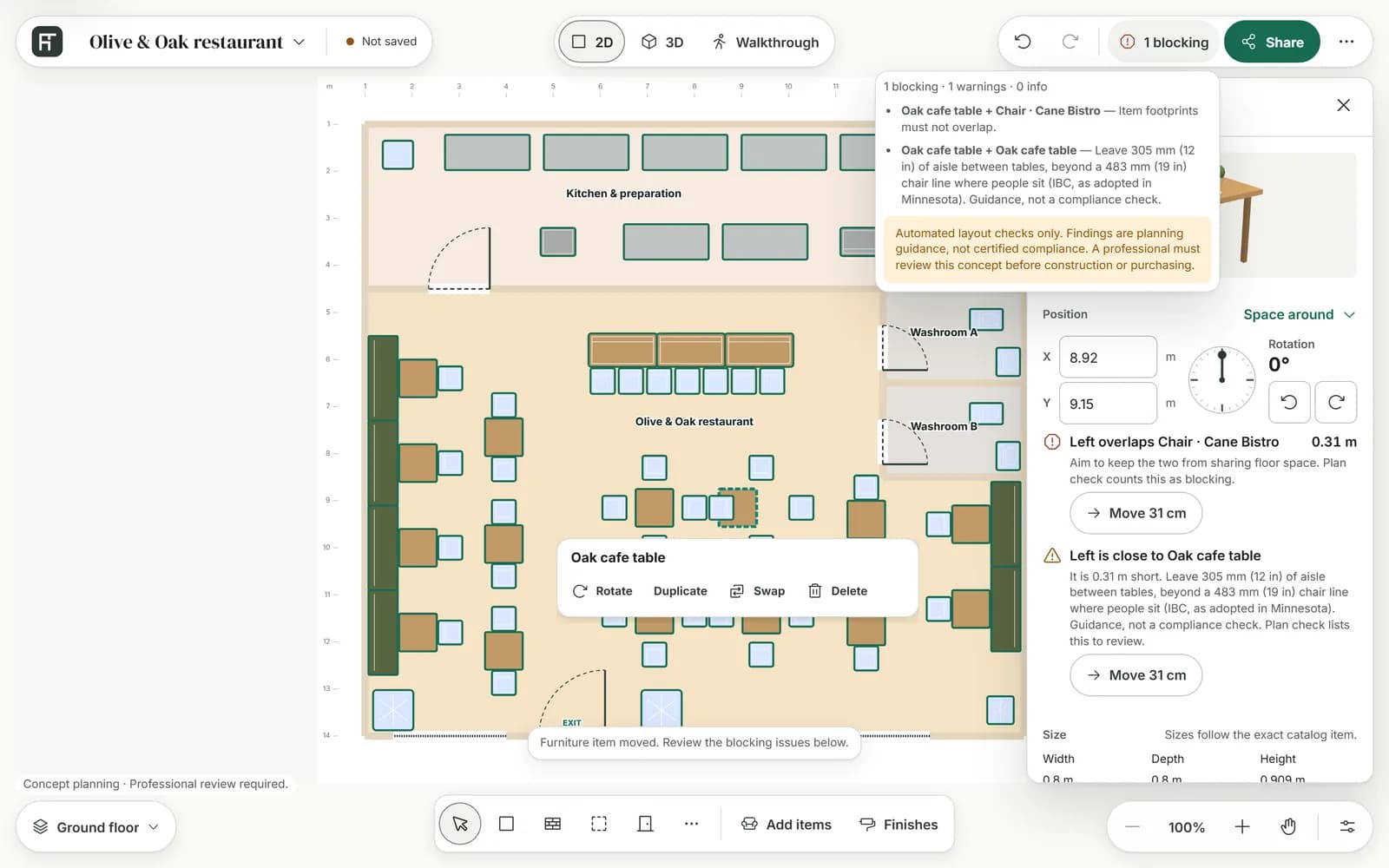
Blocking issues, warnings and info
| Kind | What it means | Examples |
|---|---|---|
| Blocking | A problem with the layout itself. Fix it before you rely on the plan. | “Item footprints must not overlap.” “Door opening and both approach areas must remain traversable.” “Item footprint overlaps solid wall geometry.” A room that no clear doorway reaches. |
| Warning | Something to look at, usually a clearance figure from a published source. | “Keep 1.83 m (6 ft) clear around play equipment (US CPSC playground handbook). Guidance, not a compliance check.” |
| Info | A note, not a problem. | The planner tidied a value, such as an item's angle. |
No finding stops you from saving, sharing or placing items. When a change leaves blocking issues, its message ends with “Review the blocking issues below.”
Clearance figures come with the catalog, and each warning names its source. Clearance guidance is always a warning, never a blocking issue.
Space around
Space around shows the gaps around one item, so you can see what a finding means and fix it.
- Select an item.
- On its card, look at the Position section. Sides the plan check flags always show there, with a warning or blocking mark.
- Press Space around, at the end of the Position line, to see the gaps on the other sides too.
Each row names a side of the item and what it faces, with the gap: for example Front to wall and a distance, or Left to another item's name. Items with a 3D model name their own sides (Front, Back, Left, Right); others use the plan's (Top, Bottom, Left, Right). Where there is no gap, the row says touching or overlapping.
A flagged side also says what to aim for, such as “Aim for 0.6 m of clear space here.”, and whether Plan check lists it to review or counts it as blocking.
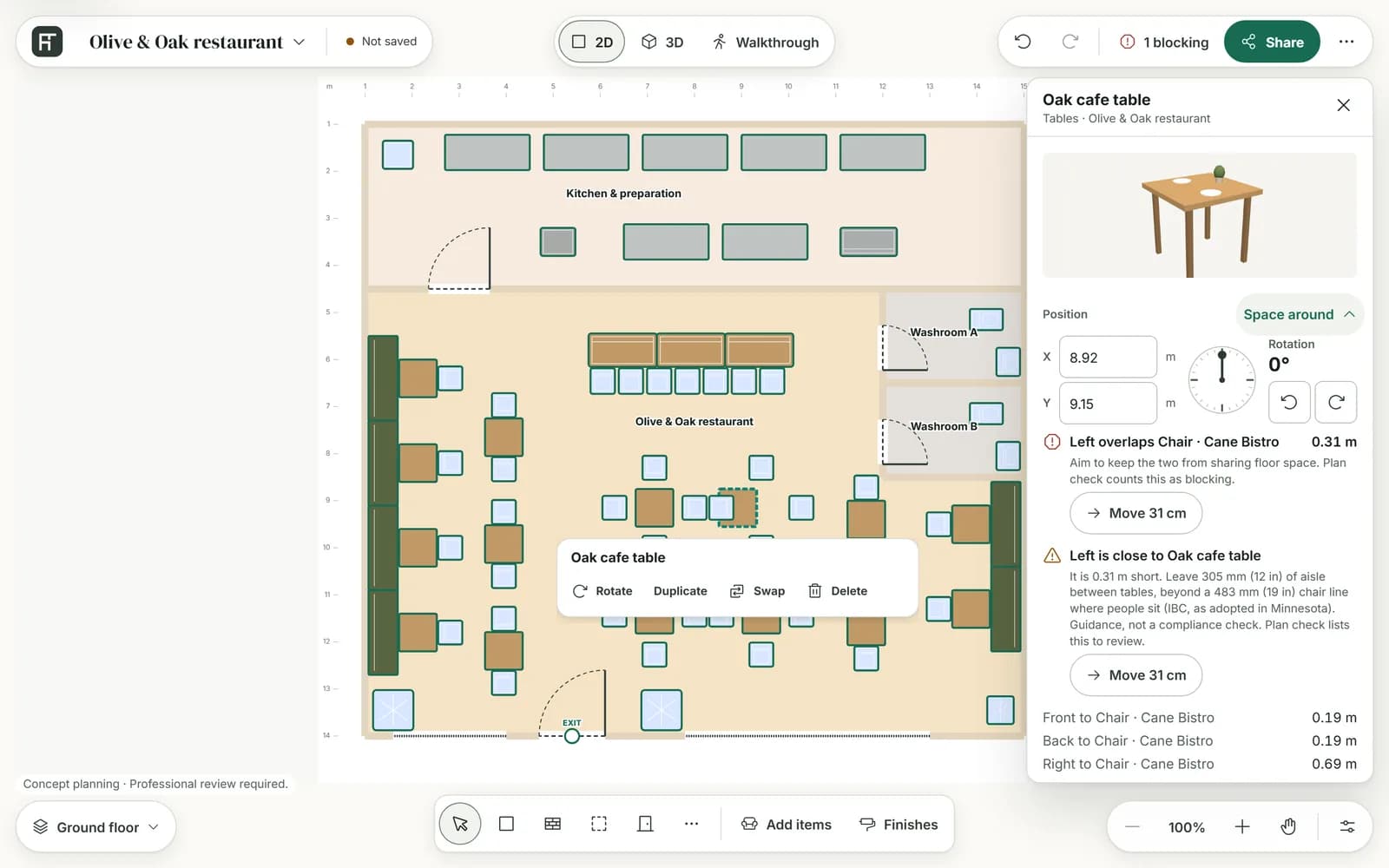
Fix a gap in one press
For the first two flagged sides, the planner looks for a move that clears the gap and offers it as one button, such as Move 15 cm. Press it and the item moves; the message offers Undo. Where no move works, the card says “There is no room to move it clear here.”
If the plan has changed since and the move would now add a blocking issue, the item doesn't move and the message says why.
Guidance, not compliance
- The checks cover what the planner can measure in a concept plan: overlaps, doorway approaches, rooms and exits a route reaches, and the clearance figures in your catalog.
- Each clearance warning names its source and ends with “Guidance, not a compliance check.”
- Where a figure is the planner's own default, such as the depth kept clear at a doorway, Space around says it is not a published standard.
- Codes and standards differ from place to place, and much of what they ask is not checked here.
Warning: The plan review summary ends with the product's own words: “Automated layout checks only. Findings are planning guidance, not certified compliance. A professional must review this concept before construction or purchasing.”
Before you share
The Share dialog repeats the plan check in one line under Before you share, for example “The automatic layout checks flagged 2 things to look at, for example: …”, with See Plan check to open the list. It never stops you from sharing. See Share and export a plan.