Look at your plan in 3D
Turn and zoom the 3D model, choose how walls show, preview themes, time and Golden light, change items, present it and save a picture.
Updated · View as Markdown
Press 3D in the top bar to see the current floor as a lit model. It is built from the same plan as 2D, so a change in one shows in the other. You can move and change items and paint surfaces here; drawing rooms and walls stays in 2D.
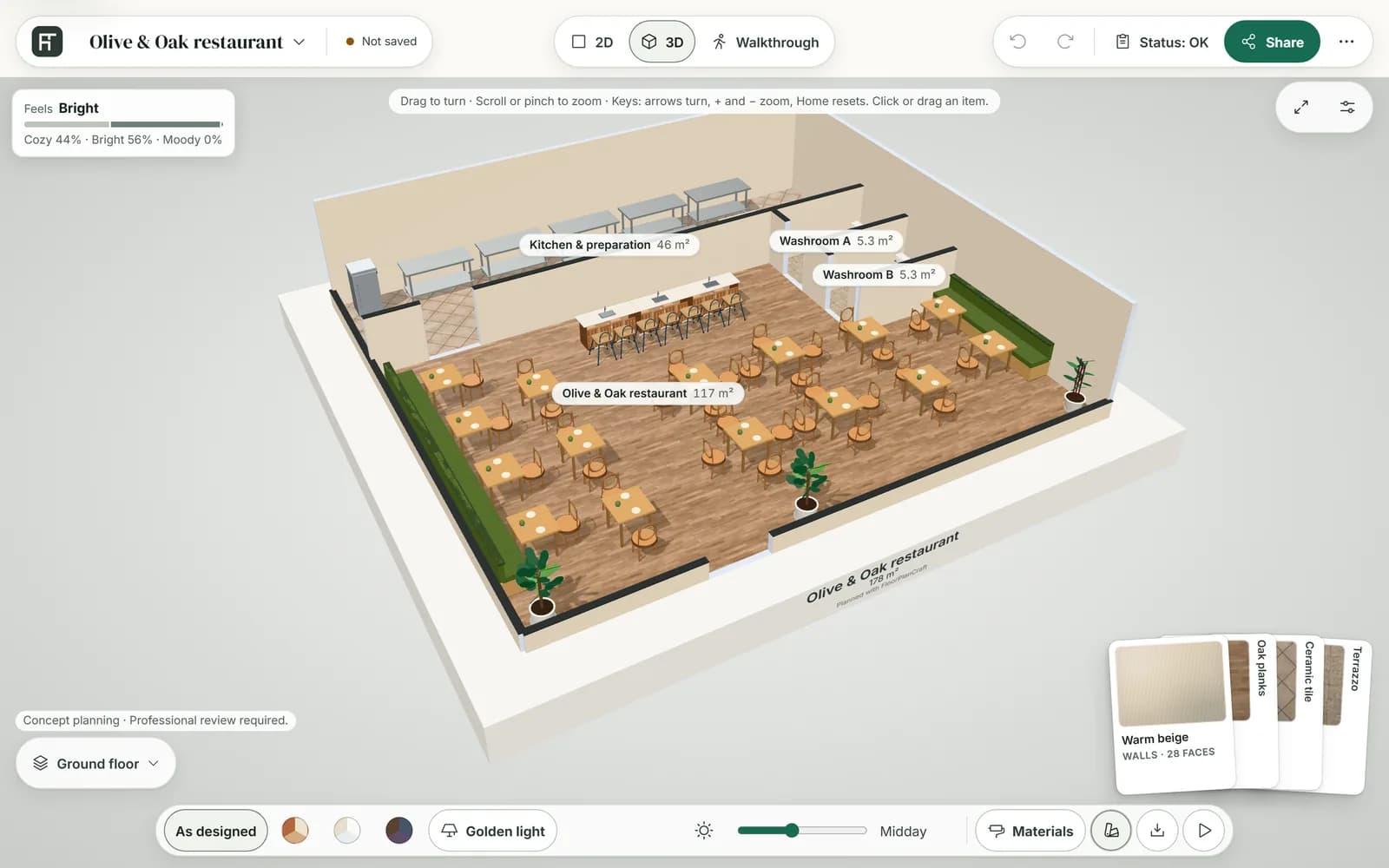
Move around
| To | Mouse or touch | Keyboard |
|---|---|---|
| Turn the view | Drag | Arrow keys |
| Zoom | Scroll, or pinch | + and - |
| Go back to the opening view | Reset view at the top right | Home |
| Select an item | Click it, or tap it | Enter or Space selects the item in the middle |
The keys work while the view has focus; Keyboard shortcuts lists them all. The view turns around the plan; it does not pan. Left alone, it slowly turns by itself until you click, drag or press a key, unless your device asks for reduced motion.
Choose how walls show
View options, at the top right of the 3D view, changes only your own view in this browser, never the plan.
| Option | What it does |
|---|---|
| Walls: Up | Every wall stands at full height. |
| Walls: Cutaway | The default. Walls between you and the rooms are cut low so you can see in, and they change as you turn. |
| Walls: Down | Every wall is cut to a low stub, so the whole floor shows. |
| Room labels | A tag over each room with its name and floor area, such as “12 m²”. On until you turn it off. Not shown on phones. |
Preview themes, time of day and light
The bar along the bottom of the 3D view tries looks on the plan. They are previews: none of them changes the plan or its finishes.
- Themes: As designed shows your own finishes. Each swatch beside it previews a theme; point at one to see its name. Playground plans, blank plans included, offer Jungle, Ocean, Pastel and Sunset party; other plans offer Warm, Bright and Evening. While a theme is on, the bar names it, for example “Preview: Ocean”.
- Time of day: the sun button, Time presets, jumps to Morning, Midday, Golden hour or Night, and the slider runs from 06:00 to 22:00. With the slider focused, the arrow keys move it 5 minutes and Page Up and Page Down jump between the presets.
- Golden light: warm evening light for the view. It is a setting of this browser, not of the plan: it stays on for every plan you open here, in the walkthrough and on shared links, and in the pictures you save. Other people see their own setting.
The panel at the top left reads the mood of the view, for example “Feels Playful”, with a bar split between three words. It is worked out from the colours of the walls and floors and the light at the chosen time, so it moves as you try finishes, themes and times. The words depend on the kind of plan:
| Plan | Mood words |
|---|---|
| Indoor playgrounds | Calm, Playful, Energetic |
| Dental clinics | Calm, Clean, Warm |
| Classrooms | Calm, Bright, Lively |
| Home gyms | Calm, Energetic, Intense |
| Restaurants, cafés and every other plan | Cozy, Bright, Moody |
Name the finishes in view
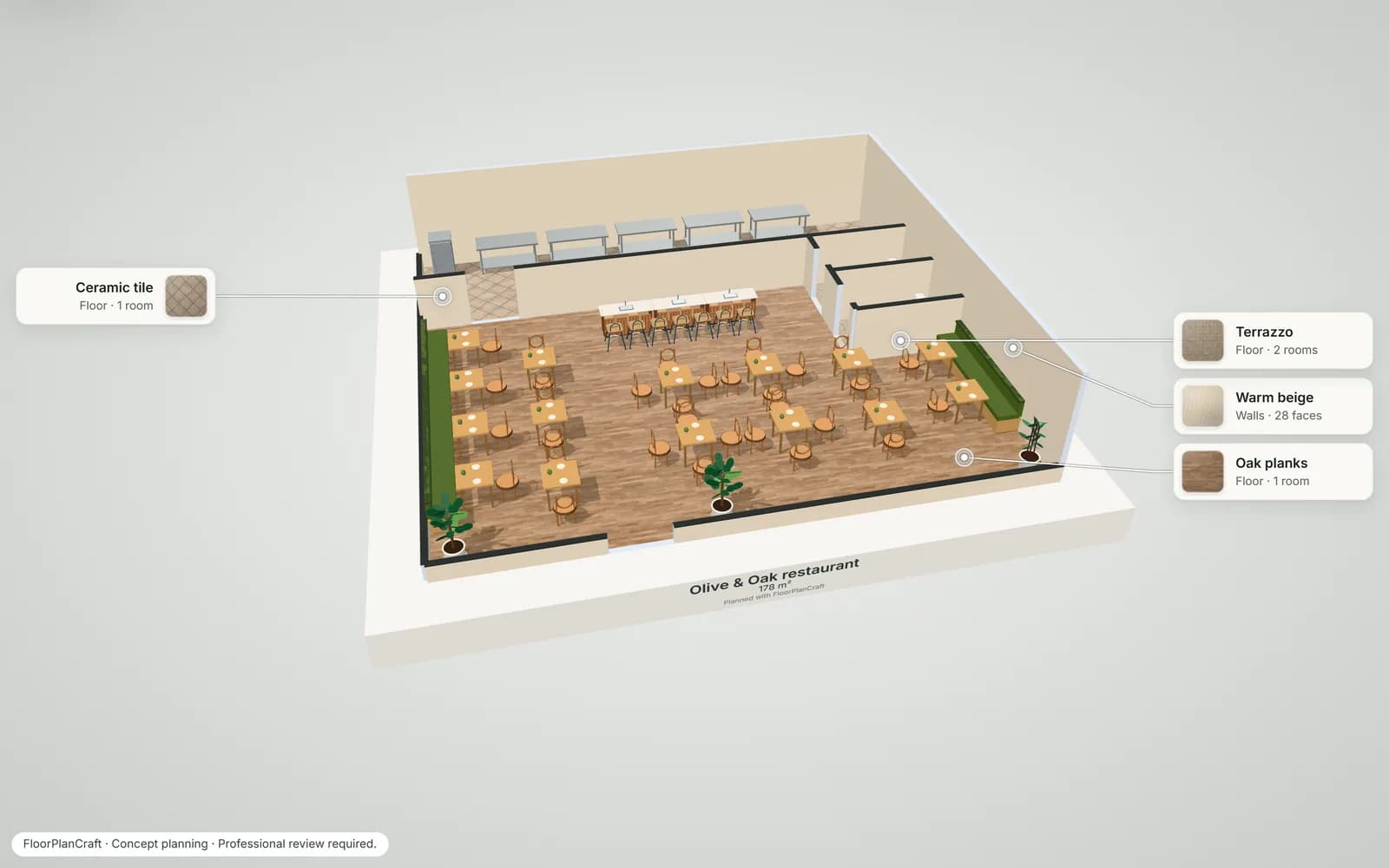
Turn on Finish labels in the bar (under More in narrower windows) to show a fan of cards in the lower right corner, one for each finish on this floor. Each names the finish and what it covers, such as “Walls · 12 faces” or “Floor · 3 rooms”, or says “Not in view”.
- Point at a card to outline every surface with that finish.
- Click a card to keep it raised, then press Open in Materials to change that finish.
- When there are more finishes than fit, a last card, “+N more”, opens Materials.
Finish labels starts on in large windows and off in small ones, and your choice is remembered in this browser. On a phone the cards fold into a chip, such as “Finishes · 4”. In Present and in saved pictures, the names stand in the margins instead.
Move and change items in 3D
- Point at an item to see its name. Drag it with the mouse to move it along the floor; it snaps as it does in 2D, and Esc during the drag puts it back.
- Click an item to select it. Its card opens, and a small toolbar floats over it with buttons such as Rotate 90°, Duplicate, Swap, Finish and Remove. Remove asks you to confirm first. The same actions are on the plan in 2D: see Add and arrange items and Swap an item.
- To turn the view while pointing at an item, drag with the right mouse button, or hold Alt while you drag.
- Click empty space, or press Esc, to deselect.
On a touch screen a tap selects an item but does not drag it. The toolbar is hidden on phones and while Materials is open; the item's card has the same actions.
Present the plan
Present, the play button at the end of the bar, shows the model on its own and asks the browser for full screen, for a meeting or a screen share. F does the same while the 3D view has focus.
- Drag, scroll and the arrow keys still turn and zoom the model.
- The caption “FloorPlanCraft · Concept planning · Professional review required.” stays on screen.
- Press Esc, or Exit · Esc, to leave.
Save a picture
Save image, in the bar (under More on a phone), downloads a 1920 × 1080 PNG of the view named after your plan, such as harbour-cafe-showcase.png, with a small floorplancraft.com mark. It keeps your angle, walls, theme, time of day and light, and leaves out the buttons. You don't need an account. With Finish labels on, the picture names the finishes in its margins.
See every floor at once
On a plan with more than one floor, open the floor menu at the bottom left and choose Whole building for a plain model of every floor. It has Reset view and See-through walls: click an item to select it, drag to turn and double-click to reset. Its bar has Materials only; pick a single floor again for themes, Present and the other tools. Floors and stairs explains how to add floors.
Note: A template link opens in 3D with one button, Make it yours. Press it to start editing; see Start a plan. Until then the view is a look only, without Materials, Finish labels, Golden light or View options, and nothing is saved.
While detailed models load, the view says “Loading detailed 3D models…”. If some can't load, exact-size placeholders stand in for them. If your device can't run 3D, the view says “3D can't start on this device.” and offers the 2D plan instead.