Share and export a plan
Send a view-only link, see what viewers can do, unshare it, save a picture as a guest, and download PNG, PDF, SVG or JSON files.
Updated · View as Markdown
Share, at the top right of the planner, sends a plan to people who don't need to edit it. Signed in, you get a view-only link. As a guest, you can save a picture. Both dialogs include Export, for files.
Create a view-only link
- Sign in, then open your plan.
- Press Share.
- Read Before you share, a summary of the automatic layout checks. Press See Plan check to look at anything flagged; see Plan check and clearances.
- Press Create view-only link. The planner saves the plan and makes the link.
- Press Copy link and send it.
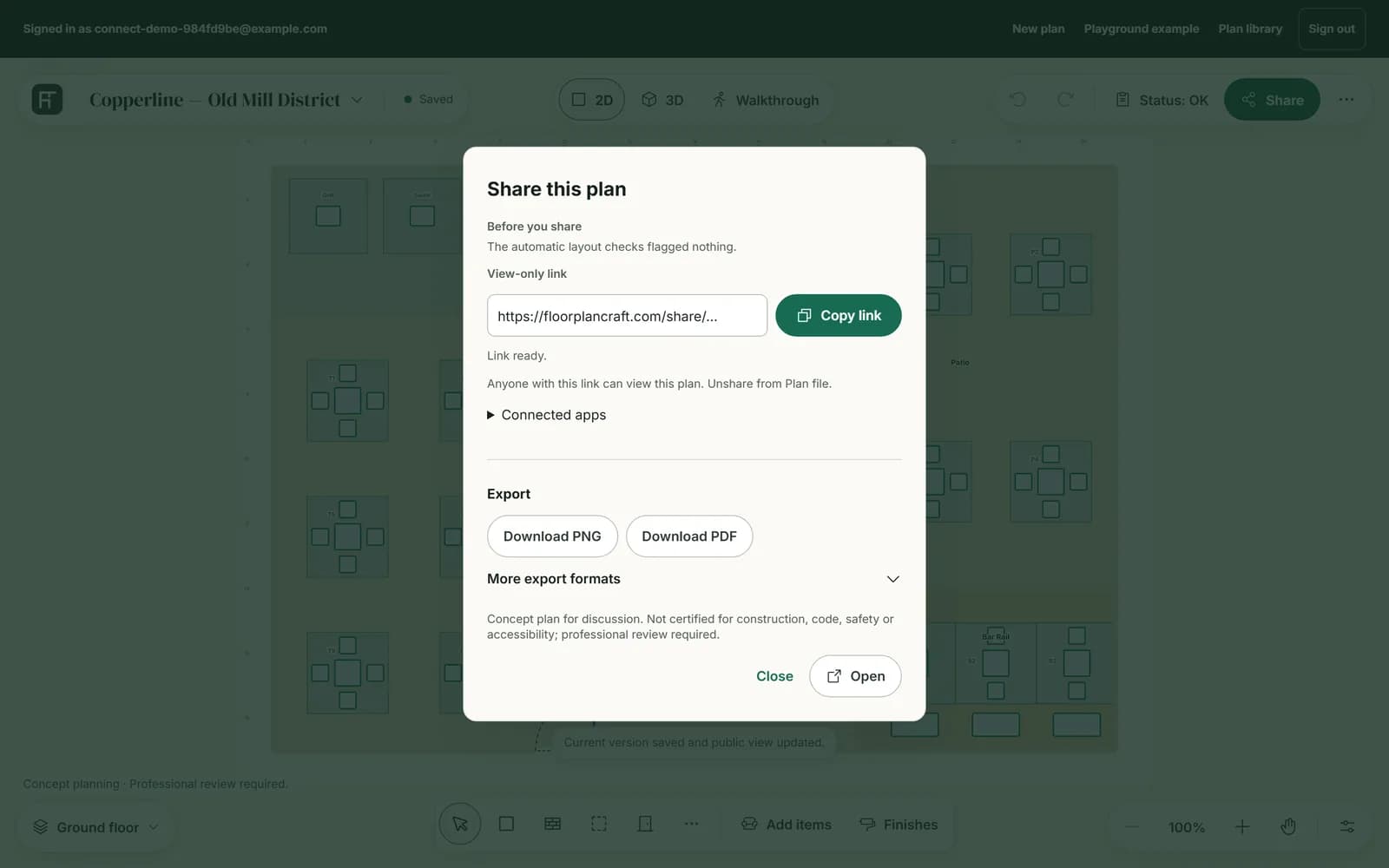
Anyone with the link can view and walk through the plan; only you can edit it. On a plan that has never been shared, opening Share publishes nothing until you press Create view-only link.
Keep the link up to date
A link shows the version you shared, not your later saves. To update it, press Share again: the dialog saves this version and updates the same link (“Sharing… Saving this version and updating its view-only link.”). Save & share in Plan file does the same without the dialog.
What viewers see
The link opens a page headed “View-only conceptual plan”, with the plan's name and when it was published. Viewers don't need an account. They can switch between:
- 2D plan, with Zoom out, Fit plan and Zoom in.
- 3D preview, with Reset view and See-through walls.
- Walkthrough, view-only, with Golden light on its bar.
- Showcase, the lit model, with themes and times of day to try, Golden light, Reset view and Save image.
A plan with more than one floor gets a tab for each floor. Below the viewer, Equipment in this plan lists the real branded products in the plan, with a link to a retailer where there is one, and Finishes lists every room's finishes. Viewers can't change, paint or save anything, and their theme and time choices last only for their visit.
Unshare a plan
- Press the plan's name to open Plan file.
- Press Unshare…, read the warning, then press Confirm unshare.
The planner says “Public link revoked. It no longer opens the plan.” The old address stops working for good: anyone who opens it gets a page-not-found message. Sharing again later makes a new link. Unsharing also stops any venue app connected to the plan; see Connect your venue app.
Deleting a plan turns off its link too. Archiving does not.
Share as a guest
Without an account there is no link. Share opens a dialog with a preview of a picture of your plan:
- Save image now downloads that picture. It always shows the walls cut away, and keeps Golden light if it is on.
- Sign in to get a link takes you to sign in, and your plan comes with you.
- Export, below them, downloads files.
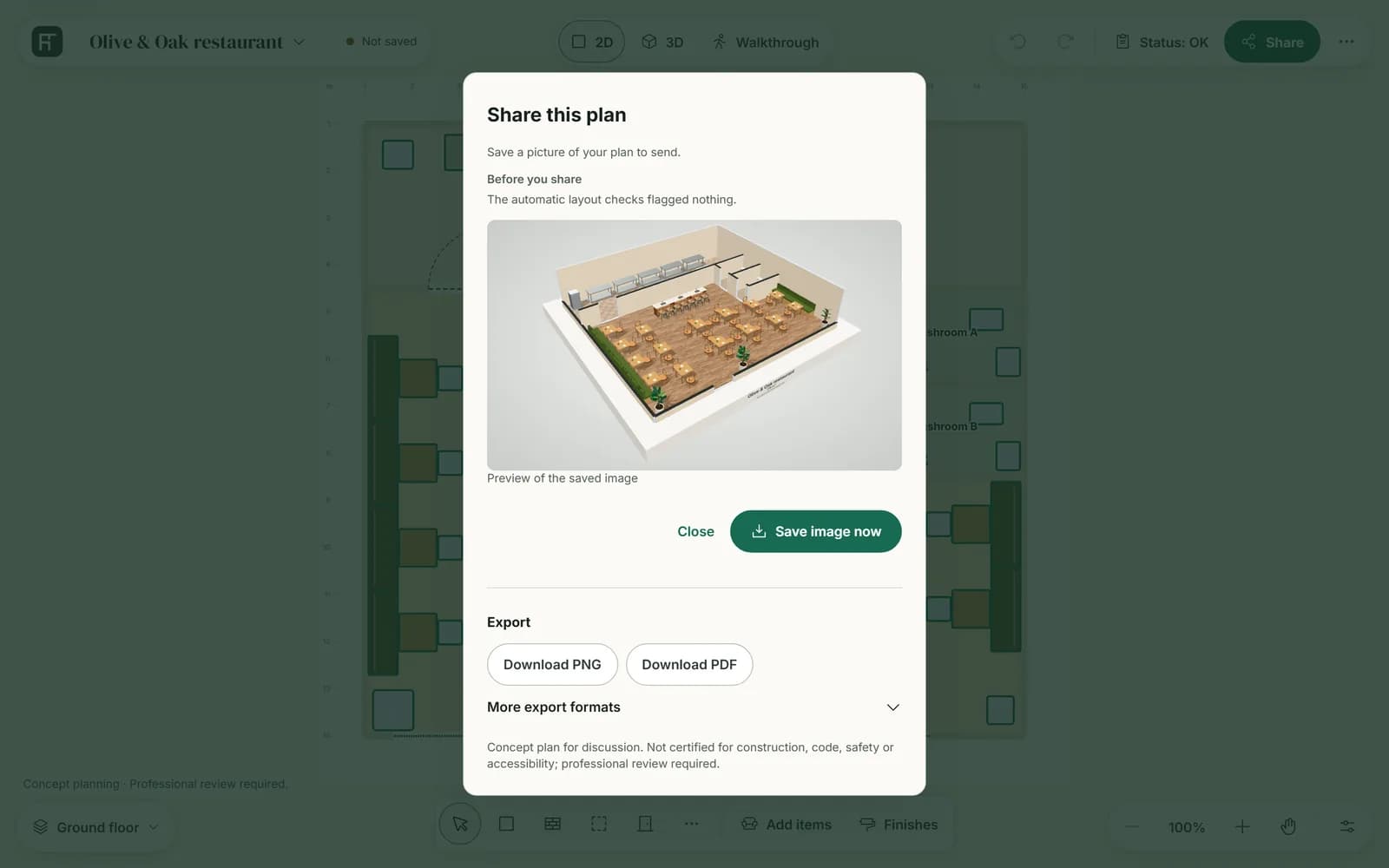
If your device can't run 3D, the dialog says “Saving a picture needs 3D, which can't start on this device.” Export still works. Signed in or not, Save image in the 3D view saves a picture too; see Save a picture.
Export files
Export, at the bottom of both Share dialogs, downloads the plan as a file.
| Button | File | What you get |
|---|---|---|
| Download PNG | floor-plan.png | An image of the 2D plan. |
| Download PDF | floor-plan.pdf | The 2D plan on an A4 page, landscape or portrait to suit the space, with a disclaimer on every page. |
| Download SVG | floor-plan.svg | The 2D plan as a vector drawing. |
| Download public-safe JSON | floor-plan.json | The plan's data, without internal notes. |
SVG and JSON are under More export formats. On a plan with several floors, the PNG, PDF and SVG show the floor you are on, and the JSON holds the whole building. Labels in the PNG, PDF and SVG use the units chosen in Measurement units under More (⋯): Metres or Feet.
Warning: You can't open an export in the planner again: there is no import. To keep a plan you can edit, sign in and save it.
Note: There is no embed code to copy. A venue app connected to the plan can show it on the sites you allow; see Connect your venue app.