Walk through your plan
Walk through your plan at eye level: start and pause, move with the keys and mouse, pick a start room, paint walls and preview light.
Updated · View as Markdown
The walkthrough puts you inside your plan at eye level, so you can check sightlines, doorways and how the space feels. It walks the current floor; walk onto a connected staircase to reach another floor (see Floors and stairs).
Start walking
- Press Walkthrough in the top bar (Walk on a phone).
- On a computer, the walk takes over the mouse: move it to look around. If the bar shows Start walking, press it first.
- Move with W A S D or the arrow keys.
- Press Esc to pause and get the mouse pointer back.
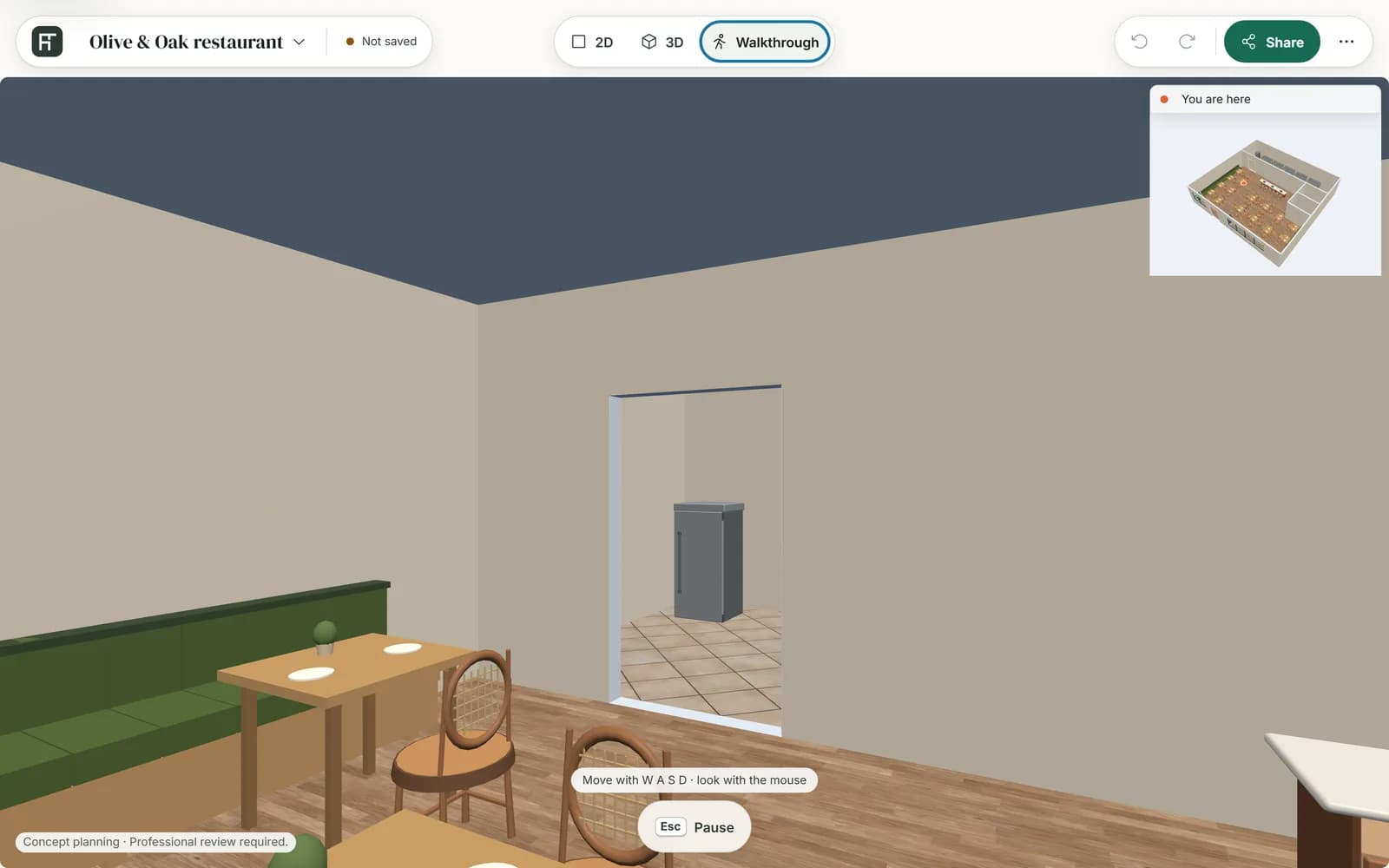
Controls
| To | On a computer |
|---|---|
| Walk | W A S D or the arrow keys |
| Look around | Move the mouse |
| Pause | Esc, or Esc Pause on the bar |
| Keep walking | Resume, or Enter right after a pause |
The walk never takes the mouse back by itself; only Resume does. If something stands in your way, you step around it where there is room.
Controls, on the paused bar, lists these keys and has a switch, Show on-screen controls, for buttons that walk and look without the keyboard: Turn left, Step forward, Turn right, Look up, Step back, Look down, and Reset view, which takes you back to the start.
What the bar tells you
| The bar says | What it means |
|---|---|
| “Move with W A S D · look with the mouse” | You are walking. |
| “Paused · press Resume to keep walking” | The walk is paused and the pointer is free. Press Resume. |
| “One moment, then press Resume again.” | The browser needs a moment after a pause before it hands the mouse back. |
| “The mouse can't be captured here. …” | The browser kept the mouse. You can still walk with the keys and look by moving the mouse; hold it at an edge to turn. Capture mouse tries again. |
| “Click Start walking, then move with W A S D and look with the mouse.” | The walk is ready. Press Start walking. |
| “The walkthrough can't start: this plan has no room to stand in.” | Add a room in 2D first. |
Choose where the walk starts
In 2D, select a room and press Use as walkthrough start on its card. The planner confirms it, for example “Walkthrough will start in Kitchen.”, and the choice is saved with the plan; Clear walkthrough start removes it. Without a start room, the planner picks a clear spot in one of the rooms.
If you walked away from the start last time, the bar asks “Where do you want to start?”: Resume where you left off or Start at the entrance, the plan's usual start. Esc keeps your last spot and waits for Start walking. The spot is remembered only while the plan stays open in this tab; it is not saved with the plan.
Paint and preview while you walk
- Paint walls pauses the walk and opens Materials on Walls. Click a finish, then a wall, or drag it on, as in the 3D view. Done or Esc takes you back to the paused walk.
- Theme & time pauses the walk and opens a panel with the themes, Times of day, the time slider and Golden light. These are previews only: your saved plan keeps its own finishes. Press Done to close the panel.
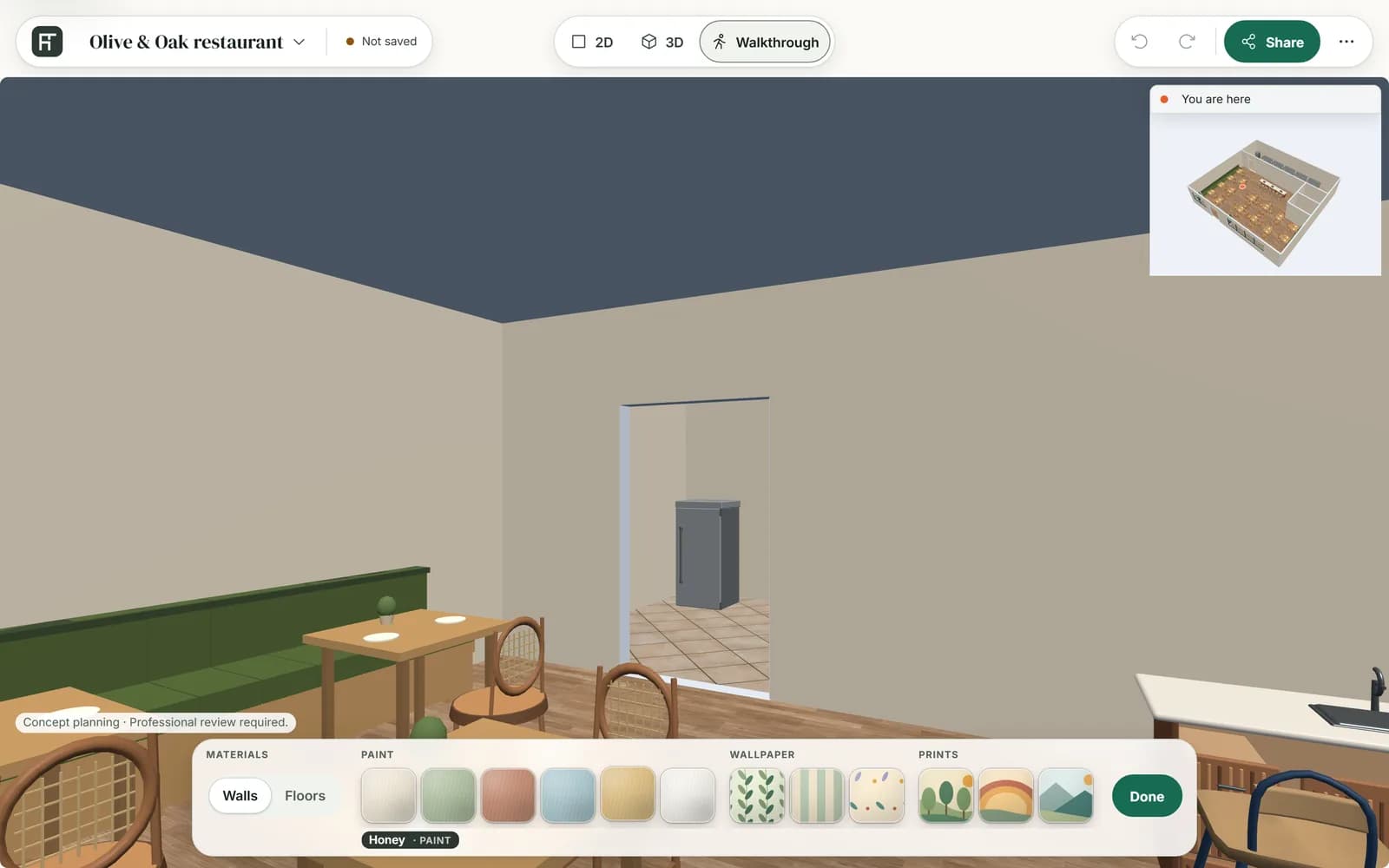
Paint walls appears on a computer with a mouse or trackpad, in a window wider than 720 pixels, on a plan you can edit. While a theme, a time other than Midday or Golden light is on, a line at the top left of the walk names it, starting “Preview:”.
On a touch screen
- Drag the Move joystick at the bottom left to walk.
- Drag across the view itself to look around.
- Reset view takes you back to the start, and Theme & time opens the theme and light panel.
- Exit leaves the walk for the 3D view.
Painting in the walkthrough needs a mouse or trackpad.
Leave the walkthrough
On a computer, choose 2D or 3D in the top bar; there is no Exit button. On a touch screen, press Exit. If you are signed in, leaving saves the plan when it has unsaved changes; see Save your plan.
Note: On a shared link the walkthrough is view-only: no painting, no Theme & time and no resume. Golden light sits on its bar.